


Exam.net is continuously evolving, and every update is based on how you and your students actually use the platform – to make everyday teaching and every exam a little smoother.
Here’s what’s new
No more forgotten questions at submission
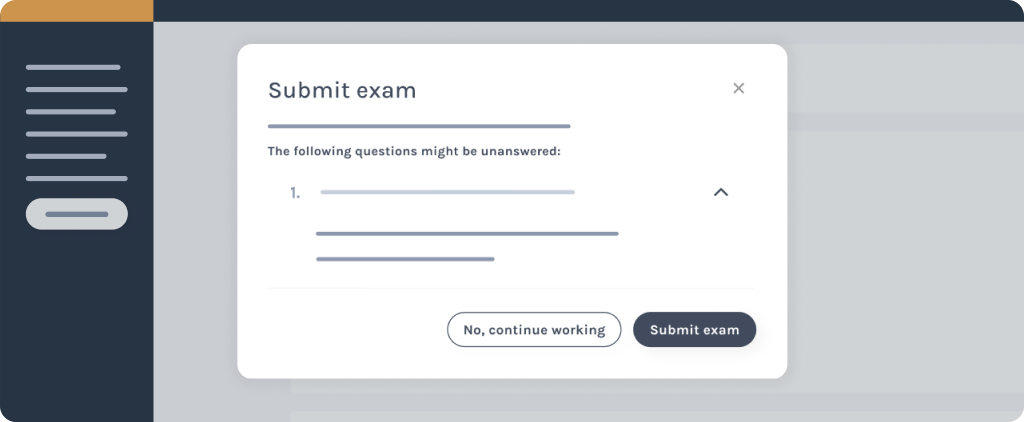
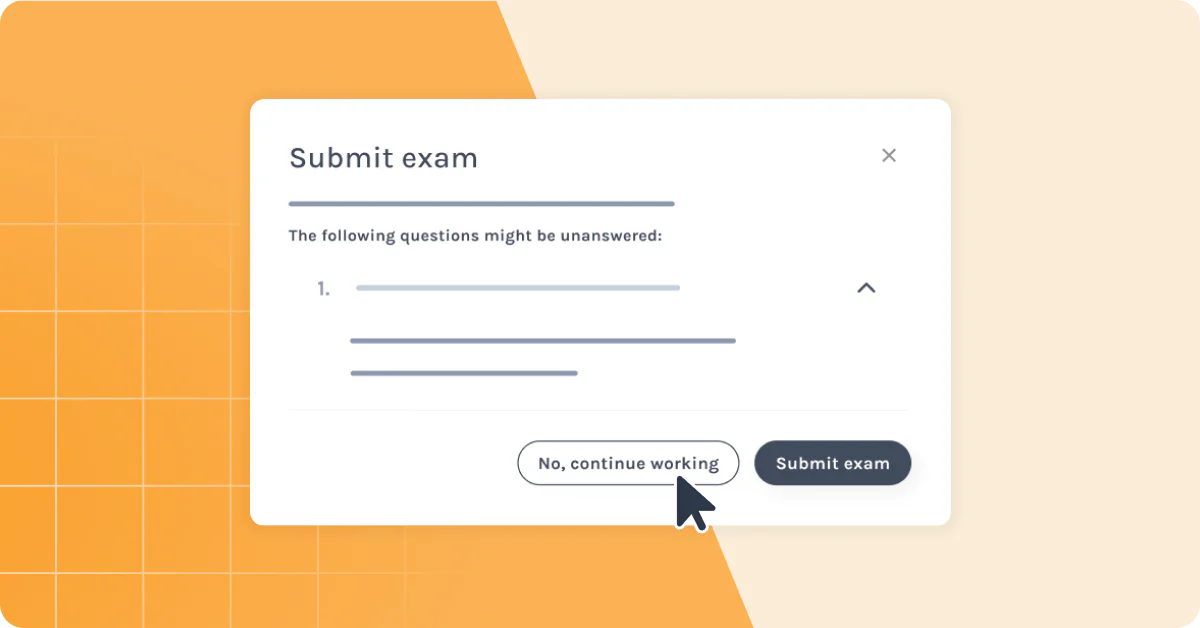
A clear warning now appears if a student tries to submit with unanswered questions – reducing the risk of unintentional gaps, while still letting them choose to submit.
Using randomised question order? Now you can see the exam as the student
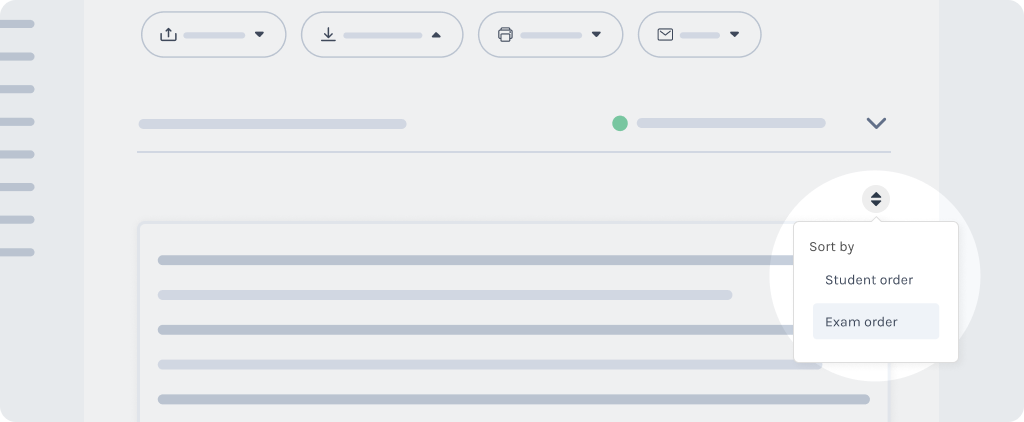
Teachers can now view the exam in the same question order as the student. When someone asks for help via chat, you’re both looking at the same question straight away.
Students can now upload files as part of their exam
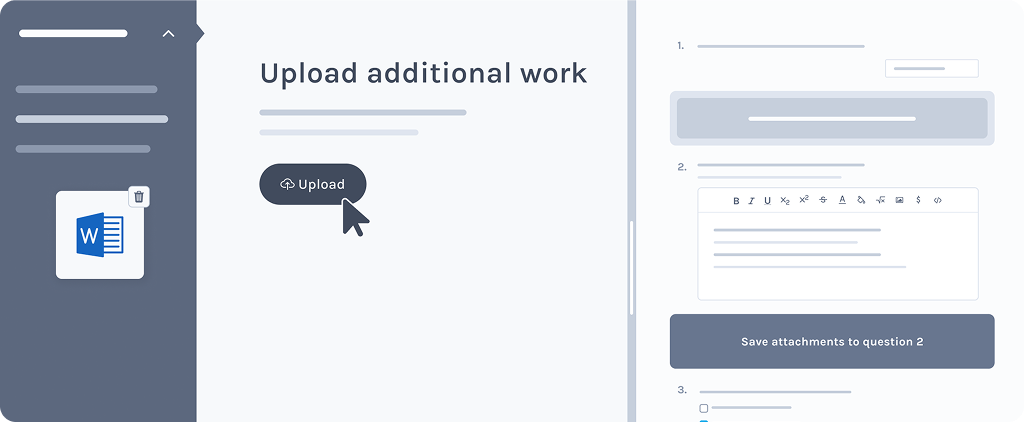
Some students need to work in external tools – like Microsoft Word or Excel – and submit that work alongside their exam. Now they can upload PDF, Word, PowerPoint, and Excel files directly as part of their submission, keeping everything in one place.
Also new
- Word limits on free-form questions – Set a soft or hard word limit to give students clearer boundaries when writing open-ended answers.
- Tools connected to questions – We’ve made it clearer which tools belong to which question, so students know exactly when and where to use them.
- Programming space – We’ve made updates to the programming space